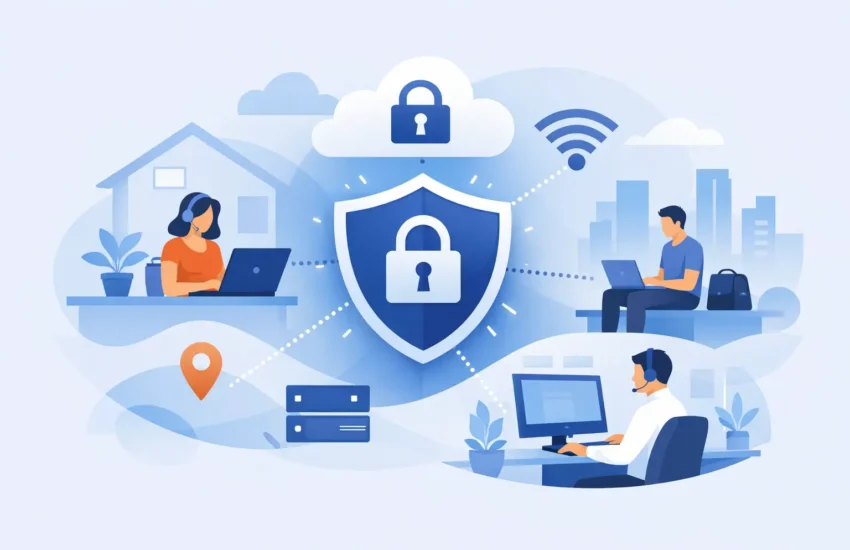
A project manager reviewing plans from home, a field supervisor sending estimates from a tablet, and an office employee working during a building closure all need access to business systems. The challenge is that secure remote access for employees must protect the same files, client records, and financial data that would normally stay inside the office network.
Remote work is not automatically risky. Unmanaged access is. When employees sign in from personal devices, reuse passwords, or connect through unprotected Wi-Fi, one compromised account can become a costly interruption to operations. For small and medium-sized businesses, the goal is not to make remote work difficult. It is to make the safe choice the easiest choice.
Why remote access needs a business plan
A remote access decision affects more than IT. It affects whether employees can serve clients during an outage, whether sensitive data remains private, and whether leadership can answer basic questions after an incident: Who had access? From what device? What information was exposed?
Law firms, medical practices, financial organizations, engineering companies, and construction firms each handle information that can create real consequences if it is lost or disclosed. A stolen laptop may contain client documents. A compromised email account can redirect invoices. An employee using a shared family computer may accidentally save confidential files where others can see them.
The cost is not limited to a cybersecurity event. Poorly planned remote access also creates daily friction. Employees call for password resets, files are stored in personal cloud accounts, and staff invent workarounds when systems are slow or unavailable. Those workarounds often become the largest security gap.
A practical plan balances security, employee experience, and cost. The right approach depends on the applications your team uses, the sensitivity of the data involved, the number of remote workers, and whether they work from company-managed devices.
Secure remote access for employees starts with identity
Most security incidents involving remote access begin with a stolen password. Passwords can be guessed, reused from another breached site, or captured through a convincing phishing email. That is why a username and password alone are no longer enough for access to email, cloud platforms, remote desktops, or business applications.
Multi-factor authentication, often called MFA, adds a second proof of identity. After entering a password, the employee confirms the login through an authenticator app, security key, or approved prompt. If a criminal has only the password, they still cannot easily enter the account.
MFA should be required for every account that can access business data, especially email, file-sharing platforms, accounting systems, and remote access tools. It should also be configured carefully. Text-message codes are better than no MFA, but authenticator apps and security keys provide stronger protection against certain phishing attacks.
Identity controls should also reflect job roles. A bookkeeper may need access to accounting software but not engineering drawings. A temporary employee may need a limited folder for one project, not the entire company file share. Access should be granted based on what a person needs to do their job, then removed promptly when their role changes or employment ends.
Choose the access method that fits the work
There is no single remote access tool that fits every business. A full remote desktop session can be appropriate when employees need specialized applications that remain on an office workstation or server. A secure cloud application may be the better choice when staff only need email, collaboration tools, and browser-based software.
A virtual private network, or VPN, creates an encrypted connection between an approved device and the business network. It can be useful for accessing internal systems, but it must be properly configured and monitored. An overly broad VPN may give a remote device access to more of the network than necessary. If that device is infected, the impact can spread.
For some organizations, a zero-trust network access approach offers more control. Instead of placing a device broadly on the internal network, it verifies the user, device, and requested application before allowing a limited connection. This can reduce exposure, though it may require more planning and investment than a basic VPN.
The key question is simple: does the employee need access to the network, or only to a specific application? Providing only the access required is usually safer and easier to manage.
Protect the device, not just the login
An authorized employee can still create risk if the device they use is outdated, infected, or lost. Company-owned devices are generally easier to secure because the business can standardize the setup, apply updates, encrypt the drive, and remotely remove business data when necessary.
A personal-device policy can work for limited use, but it needs clear boundaries. If employees use their own computers or phones, the business should decide which applications are permitted, how business data is separated from personal data, and whether the company can enforce security settings. This is particularly important for regulated information and client records.
At a minimum, remote devices should have current operating system and application updates, endpoint protection, disk encryption, automatic screen locking, and a supported backup process. Mobile devices should require a passcode or biometric lock and be enrolled in a management solution when they can access sensitive company information.
Four controls make the greatest difference for most small businesses:
- Multi-factor authentication for all remote-capable accounts
- Managed, encrypted devices with current security updates
- Limited access based on each employee’s role and job needs
- Ongoing monitoring for suspicious logins, malware, and unusual activity
These controls work together. MFA cannot compensate for an infected laptop, and endpoint protection cannot protect an account that was granted unnecessary access.
Keep data in approved locations
When remote employees struggle to find files, they often send documents to personal email, download copies to a desktop, or use consumer file-sharing accounts. That may solve a short-term problem, but it also creates versions of business data the company cannot see, protect, or recover.
Employees need a clear, usable place to store and share files. Permissions should be assigned to teams and projects, not handled informally through shared passwords. Sensitive folders should have tighter access, and sharing outside the organization should require deliberate approval.
Backup and disaster recovery also matter in remote work. A backup protects against more than server failure. It can help recover from accidental deletion, ransomware, and file corruption. However, not every backup captures cloud data automatically, and not every restore is fast enough to support a busy office. Businesses should verify what is backed up, how often, how long it is retained, and how quickly critical files can be restored.
Train employees for the moments that matter
Technology cannot prevent every mistake, particularly when criminals target people through email, text messages, or phone calls. Employees should know how to recognize a suspicious sign-in request, a fake invoice, or an unexpected password reset prompt.
Training should be short, relevant, and repeated. A quarterly reminder built around real situations is more useful than a one-time lecture filled with technical terms. Staff should also know exactly what to do if something feels wrong: stop, report it quickly, and do not try to hide the issue out of embarrassment.
A strong remote access policy gives employees direct guidance on approved devices, public Wi-Fi, file storage, password practices, and reporting lost equipment. It should be written in plain language and supported by the tools employees need to follow it.
Review access before it becomes a problem
Remote access is not a one-time project. Employees join, leave, change roles, and take on new clients. Applications change. A tool that made sense two years ago may now create unnecessary exposure or support headaches.
Regular access reviews confirm that former employees no longer have credentials, inactive accounts are removed, and permissions still match current responsibilities. Monitoring can also identify unusual behavior, such as a login from an unfamiliar location, repeated failed sign-in attempts, or large file downloads at an unusual time.
For businesses across Sacramento and surrounding communities, responsive IT support matters when an employee cannot connect before a deadline or a suspicious login needs immediate investigation. A proactive managed IT partner can maintain these controls, document the environment, and test recovery plans before a disruption puts productivity at risk.
Remote work should give your team flexibility without forcing your business to accept uncertainty. Set clear access standards, give employees secure tools that fit their work, and review the environment regularly. That is how remote access supports growth instead of becoming another source of IT frustration.


